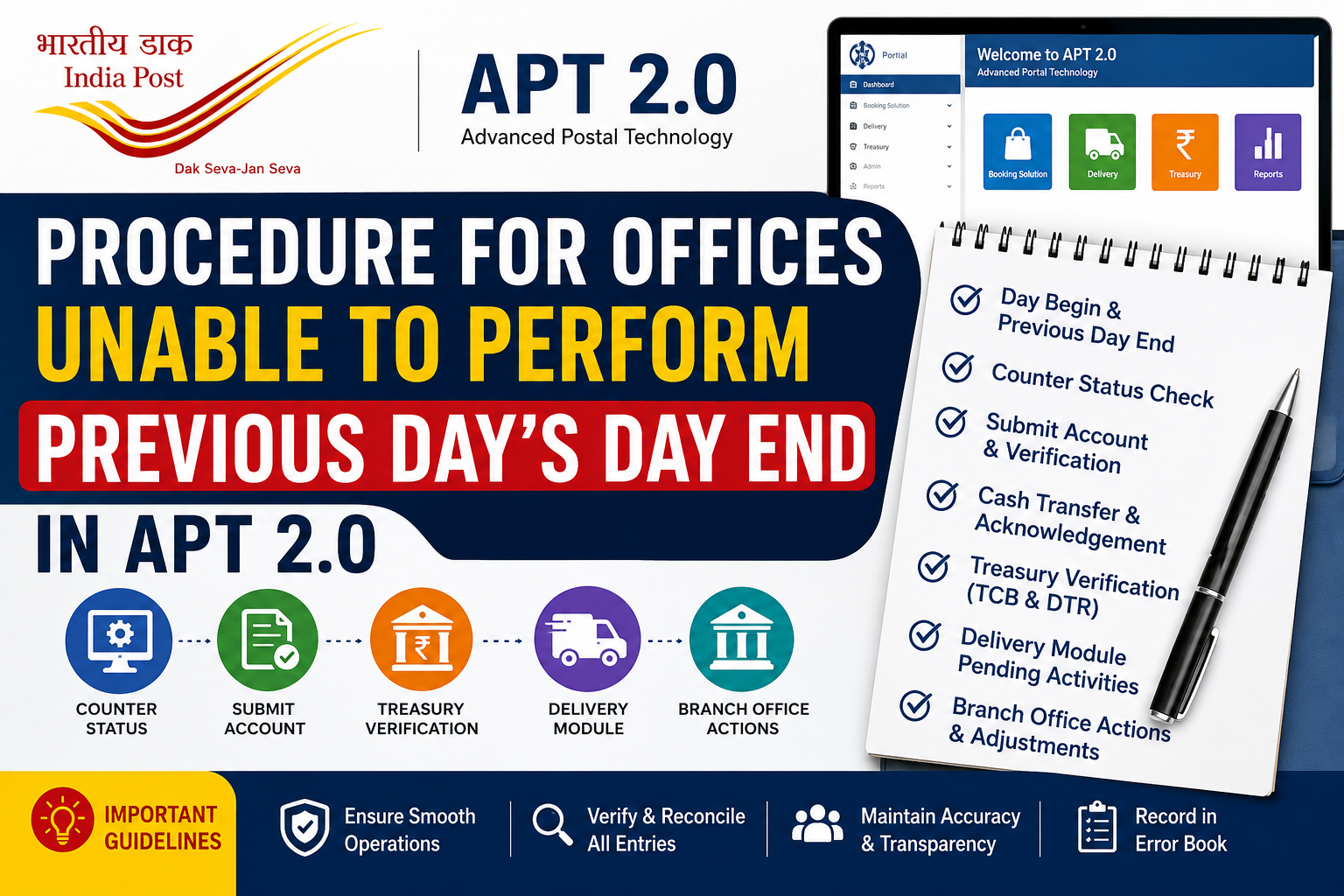
In APT 2.0, sometimes a Post Office may be unable to complete the
Day End for the previous working day due to technical,
connectivity or operational issues. In such cases, the pending Day End
must be properly completed before normal operations for the current day
are started.
Always clear the previous day’s pending activities and verify all
financial entries before proceeding with current-day operations.
Procedure for Offices Unable to Perform Previous Day’s Day End
1. Day Begin with Pending Day End
When the previous day’s Day End has not been completed, follow these steps:
- Login to the APT Portal.
- Open the Treasury Module.
- The system will prompt for:
- Day Begin for the current day.
- Day End for the previous day.
- Initiate Day Begin. The pending Day End for the previous day will be completed through the system process.
2. Check Previous Day Counter Status
After completing the above process, check whether any counter user has pending activities.
- Go to Booking Solutions → Counter Operations → View Counter Status.
- Set From Date as the previous day.
- Set To Date as the current day.
- Fetch the details.
- Identify users having pending Submit Account or Shift End.
Actions Based on Counter Status
Case 1: Submit Account Difference is Zero but Account is Not Completed
Step 1 – Submit Account
- Click the Submit and Verify option against the concerned user.
- In the Verify Accounts window, select Generate Account.
- Confirm the generation process.
- Wait until the status changes from Running to Complete. Refresh the screen if required.
- Select Fetch Account.
- Verify the generated account.
- The status should subsequently change to Done.
Step 2 – Forcible Shift End
If the Shift End is still pending after Submit Account completion:
- Select Forcible Shift End.
- Enter appropriate remarks.
- Submit the request.
- Confirm that the Shift End has been completed successfully.
Case 2: Submit Account is Not Tallying and Difference Amount Exists
If a difference amount is appearing in Submit Account, first complete the
normal account generation and verification process.
- Generate the account.
- Wait for the account generation to complete.
- Fetch and verify the account.
If the Verify option is not active, check whether the
required cash transfer to the Treasurer has been completed and acknowledged.
- Ensure the cash transfer has been made.
- Check whether the Treasury has acknowledged the transfer.
- If already transferred, verify the acknowledgement.
- Regenerate and verify the account after acknowledgement is reflected.
Wallet / Submit Account Mismatch
In certain cases, Wallet or Submit Account may remain untallied because
of a pending cash transfer or acknowledgement issue.
Scenario 1: Counter to Treasury Cash Transfer Pending
- Check whether the cash transfer from Counter to Treasury has been completed.
- If the transfer is completed but acknowledgement is not reflected in Treasury, use the appropriate Wallet Adjustment Payment option in Booking Solution.
- This may result in a corresponding difference in the Treasury Cash Book.
- Once the actual acknowledgement is received, make the required wallet adjustment receipt entry.
- Verify the current-day Submit Account.
Scenario 2: Treasury to Counter Cash Transfer Pending
Follow the prescribed wallet adjustment process and ensure that the cash
transfer is properly acknowledged by the concerned module.
SPM/Supervisor should carefully verify all adjustments before Submit
Account verification and Treasury Day End. Necessary adjustment details
should also be recorded in the Error Book.
Treasury Module – Final Verification
Before starting current-day counter operations, verify the previous day’s Treasury records.
- Generate the Treasury Cash Book (TCB) for the previous day.
- Generate the Daily Transaction Report (DTR).
- Check the closing balance.
- Match the system balance with the physical cash available.
- Confirm that all necessary entries and adjustments have been properly recorded.
Only after completing these checks should counters be allocated
for the current day.
Delivery Module – Pending Previous Day Activities
Offices should also check the Delivery Module when the previous day’s
activities are pending.
- Process Shift Begin for the current date.
- The system may prompt for Force Shift End.
- Complete the Force Shift End process.
- Again process Shift Begin for the current date.
Pending Articles / EMOs
- Process the required returns for pending previous-day articles/EMOs first.
- Do not submit the previous day’s beat account where the system does not provide a revoke option.
- Invoice articles/EMOs for the current date as required.
- Take returns as applicable.
- The subsequent Day End Submit Account for beats may include transactions relating to both days.
Branch Office (BO) Actions
Branch Offices may also have pending activities when the previous day’s
process was not completed. The following checks are important:
- Force Shift End can be completed on the following day.
- Transactions should reflect correctly in Wallet and subsequently in BODA.
- BODA and CBR mismatches can be corrected through the prescribed mismatch entry.
- Wallet or physical cash differences can be adjusted through the appropriate Wallet Adjustment option in Miscellaneous Entry.
- Unprocessed articles can be invoiced on the next day using To be Invoiced.
- For already invoiced articles, check acknowledgement status before processing delivery.
Quick Checklist for Post Office Staff
| Check | Action |
|---|---|
| Previous Day End | Complete pending Day End before current-day operations. |
| Counter Status | Check pending Submit Account and Shift End. |
| Submit Account | Generate, Fetch and Verify the account. |
| Cash Transfer | Verify transfer and acknowledgement. |
| Treasury | Verify TCB, DTR and physical cash. |
| Delivery | Clear pending Shift End and article/EMO activities. |
| Error Book | Record required corrections and adjustments. |
Important Points to Remember
- Always clear pending previous-day activities first.
- Do not ignore Submit Account or Shift End pending status.
- Verify cash transfers and acknowledgements before final verification.
- Match system balances with physical cash.
- Maintain proper records in the Error Book.
- Supervisors should verify financial adjustments before Day End.
- Ensure that pending delivery activities are properly completed.
Conclusion
Failure to complete the previous day’s Day End in APT 2.0 should not be
treated as a routine issue. The pending counter, treasury and delivery
activities need to be checked systematically before normal operations are
continued.
By following the above procedure, Post Office staff can identify pending
accounts, resolve cash-transfer or wallet mismatches, complete required
Shift End activities and ensure that Treasury records are properly
reconciled.
This article is prepared for informational and training purposes for
postal employees. Staff should always follow the latest instructions,
SOPs and official communications issued by the Department of Posts/CEPT.
In case of any conflict, the latest official departmental instruction
shall prevail.