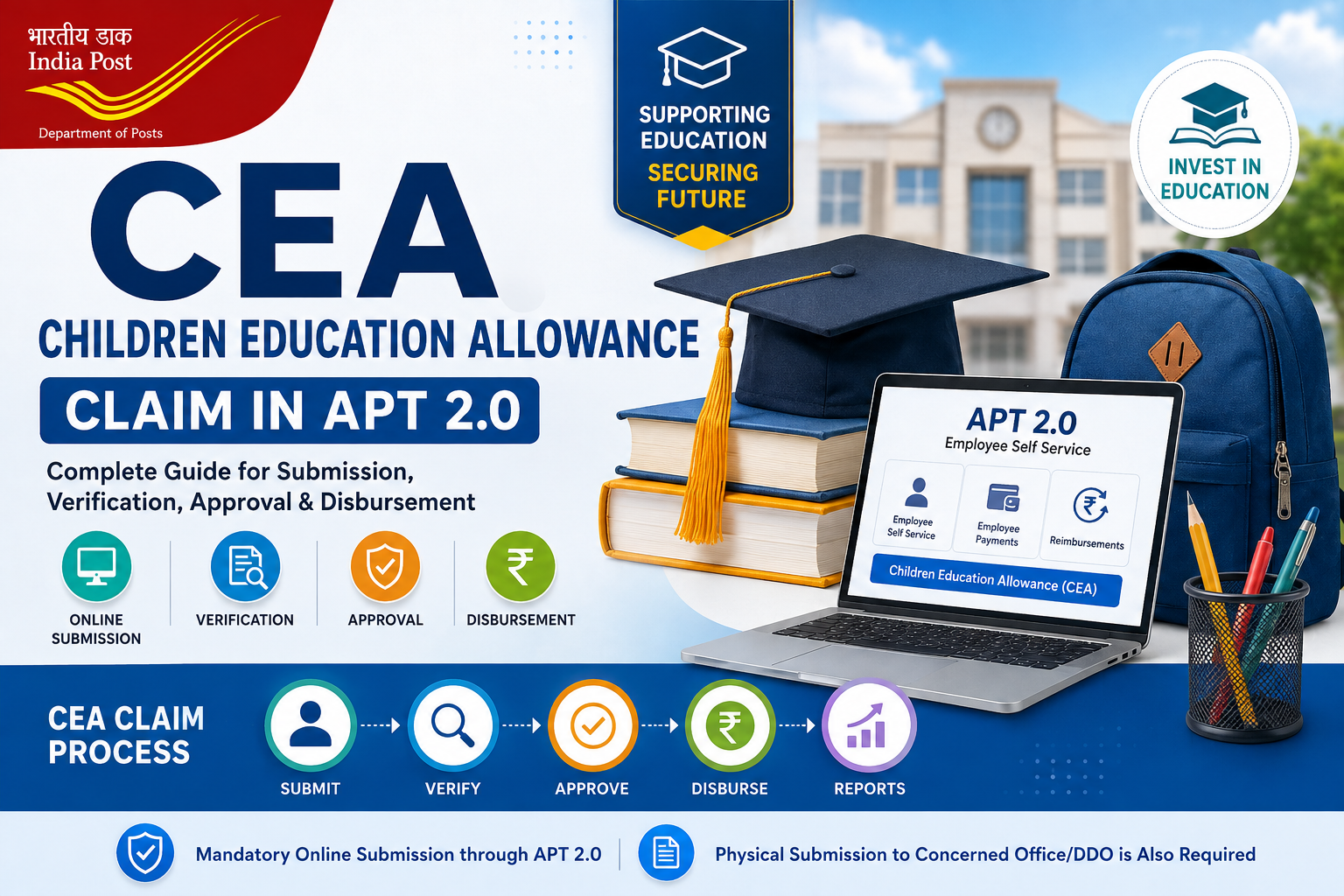
Children Education Allowance (CEA)
Claim in APT 2.0
Complete step-by-step guide for CEA reimbursement claim
submission, verification, approval, disbursement and reports.
CEA
Education Allowance
APT 2.0
Online Processing
Documents
Upload & Verify
Payment
DDO Disbursement
Important: Online + Physical Submission
CEA claims are to be submitted mandatorily through
APT 2.0. Employees must also submit physical copies
of the claim along with supporting documents to the
concerned office/DDO for verification and record purposes.
Quick Navigation
Jump directly to any section
Complete CEA Processing Workflow
The APT 2.0 CEA process follows a structured workflow from
employee submission through final disbursement and reporting.
Employee
Submit CEA claim
Verification
Check documents & amount
Approval
Sanction / reject
Disbursement
DDO processes payment
Reports
Accounting & reports
1. Login to APT 2.0 Employee Portal
The employee must access the Department of Posts Employee Portal
through a recommended web browser.
🌐 Employee Portal
→
👤 Employee ID
→
🔑 Password
→
🔐 Authentication
OPEN PORTAL
Open the Employee Portal
Enter the Employee Portal address in a recommended
web browser.
LOGIN
Enter Employee ID & Password
Enter your Employee ID and Password and click
Sign In.
AUTHENTICATION
Complete Two-Factor Authentication
After Sign In, authentication can be completed using
either:
- Authenticator App – TOTP
- Mobile OTP
Login Security
Use your own authorized credentials and complete the
authentication step before accessing Employee Self Service.
2. Roles Required for CEA Processing
Employee Self Service is available by default to Department
of Posts employees. Other roles required for workflow processing
are assigned through Role Management.
Employee
Submits the CEA reimbursement request through
Employee Self Service.
Verification Authority
Checks the submitted claim, supporting documents
and eligible amount.
Sanctioning Authority
Reviews the verified request and approves or rejects it.
DDO
Completes the applicable disbursement workflow after approval.
3. Employee CEA Claim Submission
After successful login, follow the navigation path below
to reach the CEA reimbursement screen.
👤 Employee Self Service
→
💳 Employee Payments
→
💰 Pay re-reimbursement
→
📄 Reimbursements
STEP 01
Open Employee Self Service
Click the Employee Self Service
icon after logging into APT 2.0.
STEP 02
Open Employee Payments
Click the Employee Payments card.
STEP 03
Open Reimbursements
Navigate to the Pay re-reimbursement
card and click the Reimbursements
sub-card.
STEP 04
Select Children Education Allowance
Select Children Education Allowance
from the reimbursement type drop-down.
4. Enter CEA Claim Details
After selecting Children Education Allowance, complete the
required information shown in the reimbursement screen.
Select the appropriate option.
Select the appropriate child from the available list.
Enter/select the applicable academic details.
Enter the name of the educational institution.
Enter the applicable claim amount.
Enter details where applicable.
Enter relevant remarks as required.
Active approved child details are auto-populated.
Important: Child Details
Children details approved as Active
in the Personnel Information System (PIS) are
auto-populated in the Select Child drop-down.
Select the appropriate child using the checkbox.
5. Preview, Upload Documents & Submit
Preview the Claim
Click Preview and carefully review
all information entered in the claim.
Upload Supporting Document
Select the required supporting document and click
Upload.
Verify All Details
Check the child details, academic year, institute,
claim amount, hostel subsidy and remarks.
Submit the Request
Click Submit after confirming the
complete claim.
Save Your Request ID
After successful submission, the system displays a
success message along with a system-generated
Request ID. Keep this ID safely
for future reference.
6. Physical Copy Submission
Physical Submission is Also Required
Along with mandatory online submission through APT 2.0,
employees are required to submit physical copies of
the claim along with supporting documents to the
concerned office/DDO for verification and record purposes.
The existing DoPT-prescribed format
continues to be followed for physical claims.
7. Verification by Verification Authority
The designated Verification Authority processes submitted
CEA requests through the Payroll System.
💼 Payroll System
→
🔄 Verification & Approvals
→
🔎 Verification
Open Payroll System
Click the Payroll System card.
Open Verification & Approvals
Navigate to the Verification & Approvals
card.
Click Verification
Open the Verification sub-card.
Submitted reimbursement requests will be populated.
Open Request ID
Click the Request ID hyperlink to view the complete
claim details.
Download & Check Attachments
Click Download Attachment to view
the documents uploaded by the employee.
Enter Eligible Amount
Enter the verified amount in the appropriate
Eligible Amount field.
Verify the Request
Enter remarks, click Verify and
confirm the verification by clicking
Yes.
Verification Successful
After confirmation, a success message with the
Request ID is displayed.
8. Assign Request to Another Verification Authority
If required, the request can be assigned to another designated
user for verification.
Enter Remarks
Enter the appropriate remarks for assignment.
Enter New User’s Post ID
Enter the Post ID of the designated Verification Authority.
Click Assign
Click the Assign button.
Confirm User Details
Verify the displayed details and click
Yes to complete assignment.
9. Approval by Sanctioning Authority
💼 Payroll System
→
🔄 Verification & Approvals
→
✅ Approvals
Open Payroll System
Navigate to the Payroll System card.
Open Verification & Approvals
Click the Verification & Approvals
card.
Open Approvals
Click the Approvals sub-card.
Review Pending Requests
View requests pending for
Approval / Rejection.
Open Request & Approve
Click the Request ID hyperlink, review the details
and click Approve.
10. CEA Disbursement by DDO
After Approval
Once the Sanctioning Authority approves the request,
it becomes available to the DDO for disbursement.
Open Approved Request
The approved request becomes available for the
disbursement workflow.
Select Applicable Disbursement Route
The DDO completes the workflow depending upon whether
the payment is through POSB or
another/home bank.
Complete Disbursement
Complete the applicable POSB disbursal or cheque
request workflow for bank disbursal.
Completion
The system displays the disbursement ID and completion
status after successful completion of the workflow.
11. Reports Available in APT 2.0
The SOP provides three important reporting facilities for
accounting and transaction-related requirements.
Payroll Account Summary
View the Payroll Account Summary for transactions posted.
Budget Block / Consumption
Download the budget block/consumption report in Excel format.
Account Summary Report
Download the Account Summary Report in Excel format.
📑 Payroll Account Summary
Payroll System
→
Drawings & Disbursements
→
Forms
→
Accounts Reports
Enter the relevant dates to view the Payroll Account Summary
for posted transactions.
📈 Budget Block / Consumption Report
Navigate to the Drawings & Disbursements
card to download the report in Excel format.
📊 Account Summary Report
Navigate to the Drawings & Disbursements
card to download the Account Summary Report in Excel format.
- Complete TOTP or Mobile OTP authentication.
- Navigate to Pay re-reimbursement → Reimbursements.
- Select the appropriate spouse-employee option.
12. Employee CEA Submission Checklist
Before final submission, use this checklist to ensure that
the claim has been completed properly.
- Login to the APT 2.0 Employee Portal.
- Complete TOTP or Mobile OTP authentication.
- Open Employee Self Service.
- Open Employee Payments.
- Navigate to Pay re-reimbursement → Reimbursements.
- Select Children Education Allowance.
- Select the appropriate spouse-employee option.
- Select the appropriate child.
- Check the child’s active PIS details.
- Enter Standard and Academic Year.
- Enter Institute Name.
- Enter Claim Amount.
- Enter Hostel Subsidy wherever applicable.
- Enter appropriate Remarks.
- Preview the claim.
- Upload supporting document(s).
- Check all information carefully.
- Click Submit.
- Save the system-generated Request ID.
- Submit physical claim and supporting documents to the concerned office/DDO.
Role-wise Responsibility
| Stage | Responsible User | Responsibility |
|---|---|---|
| 📝 Submission | Employee |
Submit CEA reimbursement claim through Employee Self Service. |
| 🔎 Verification | Verification Authority |
Check claim, documents, eligible amount and verify the request. |
| 🔄 Assignment | Verification Authority |
Assign the request to another designated verification authority when required. |
| ✅ Approval | Sanctioning Authority | Review and approve or reject the verified request. |
| 💰 Disbursement | DDO | Complete the applicable disbursement workflow. |
| 📊 Reports | DDO | View/download relevant accounting and budget reports. |
Frequently Asked Questions
Is online submission of CEA claim mandatory?
Yes. The Office Memorandum states that CEA claims
shall be mandatorily submitted online through APT 2.0.
Is physical submission also required?
Yes. Physical copies of the claim along with supporting
documents are also to be submitted to the concerned
office/DDO for verification and record purposes.
Which format should be used for the physical claim?
The existing DoPT-prescribed format for CEA claims
continues to be followed for physical claims.
Where is the CEA reimbursement option available?
Employee Self Service → Employee Payments →
Pay re-reimbursement → Reimbursements.
How are child details populated?
Children details approved as Active in the Personnel
Information System (PIS) are auto-populated in the
Select Child drop-down.
What happens after submitting the claim?
A success message with a system-generated Request ID
is displayed after successful submission.
Who verifies the CEA claim?
The designated Pay Verification Authority verifies
the reimbursement request.
Can a request be assigned to another verifier?
Yes. The SOP provides an option to assign the request
to another designated verification authority using
the user’s Post ID.
Who approves the verified request?
The designated Sanctioning Authority processes the
request through the Approvals section.
Who completes the disbursement?
After approval, the DDO completes the applicable
disbursement workflow.
Which reports are available?
The SOP describes Payroll Account Summary,
Budget Block/Consumption Report and Account Summary Report.
CEA Claim Process – Quick Summary
Submit
Verify
Approve
Disburse
Reports
Remember
The complete process is:
Employee Submission → Verification →
Approval → Disbursement → Accounting & Reports.
Source & Document Details
Office Memorandum:
Department of Posts, Ministry of Communications,
Government of India.
Subject:
Procedure for submission and processing of Children
Education Allowance (CEA) claims in APT 2.0.
SOP:
Payroll SOP in APT – Submission of Children Education
Allowance (CEA) reimbursement claim and processing
(Verification / Approval / Disbursement) in APT.
Module: Payroll System
Area: Employee Self Service
SOP Date: 11-04-2026
This article is based on the supplied Department of Posts
Office Memorandum and APT 2.0 SOP. Employees should follow
the latest official instructions applicable to their office.
🎓 CEA Claim in APT 2.0
Submit your claim correctly and keep the Request ID safely.
Submit → Verify → Approve → Disburse → Reports