- Turn on the printer holding F1 and F2 buttons.
- Insert an A4 size paper to the printer it will print the default language
- Press F2 to confirm and F1 in case you need to change (The default language will be underlined)
- The printer will ask you whether to print default settings or not, Press F1 to skip
- Now it will show Common settings press F2 for Software settings and then press F1
- Each settings will be displayed. Press F1 until it shows SOFTWARE
- By default the softare will be of EPSON press F2 to change it to IBM PPDS
- Also better to select the port USB. Because USB Printing is faster than COM Port printing.
- After you see IBM PPDS press F1 again to show next settings
- Now turn off the printer
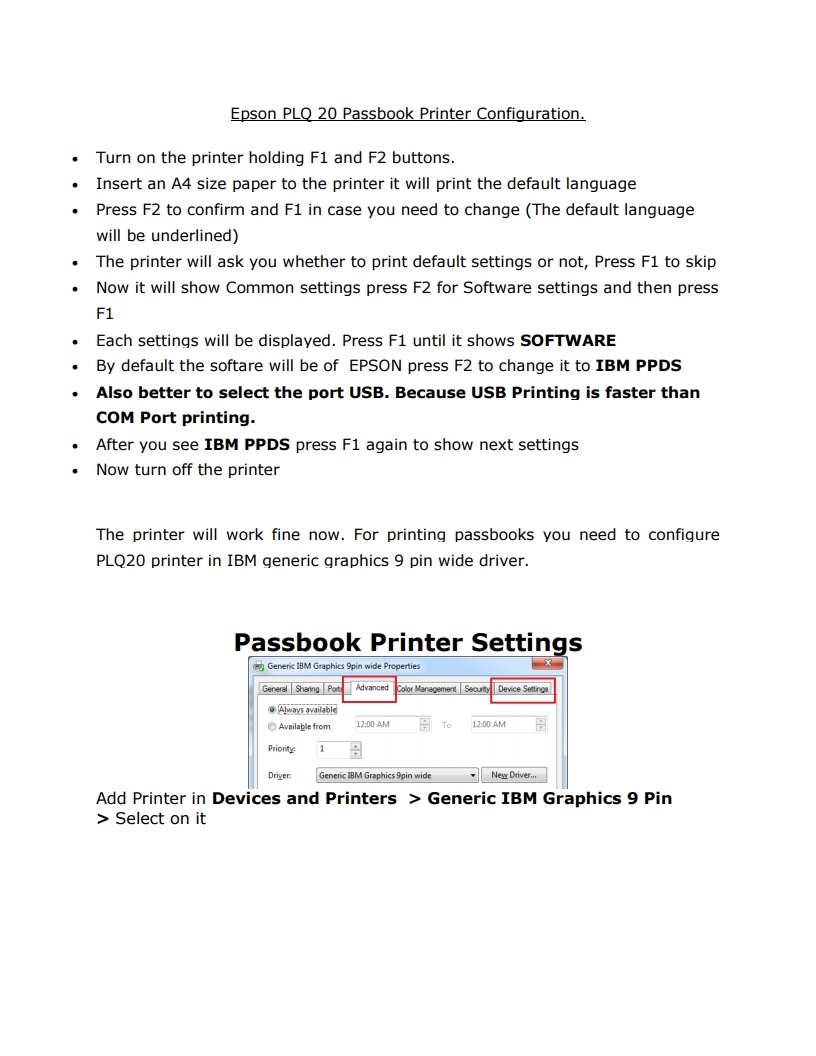
- The printer will work fine now. For printing passbooks you need to configure
- PLQ20 printer in IBM generic graphics 9 pin wide driver
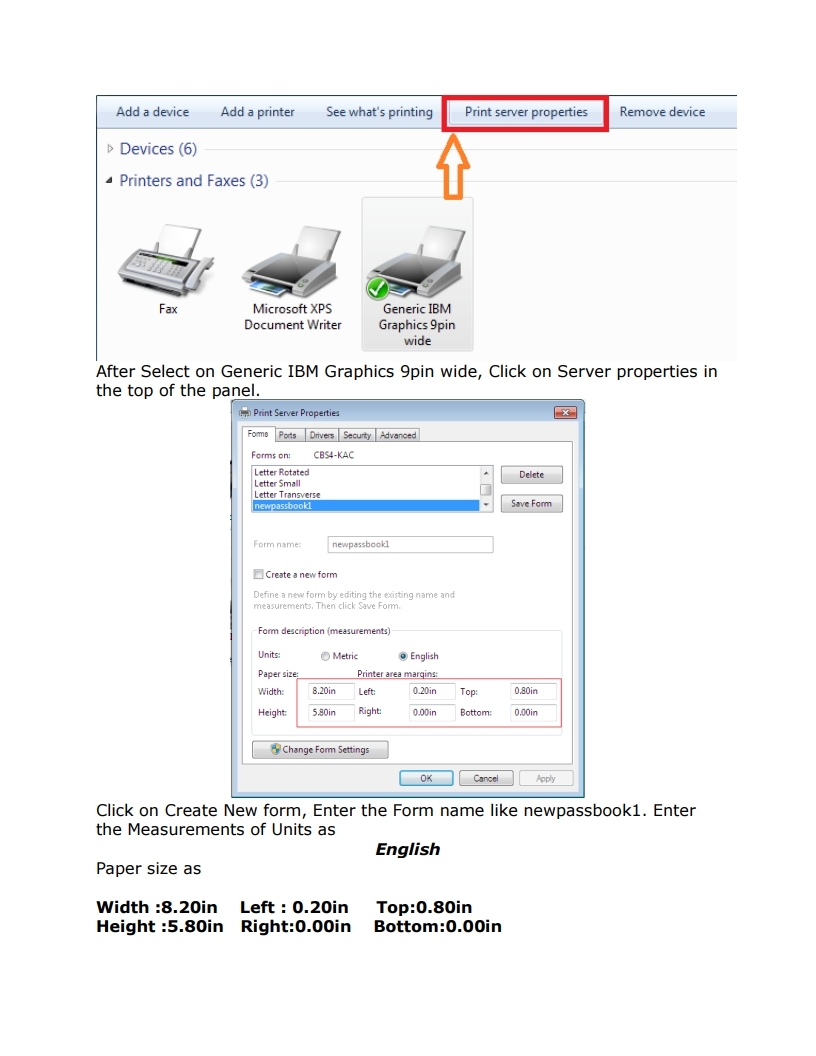
Click on Create New form, Enter the Form name like newpassbook1. Enter the Measurements of Units as English Paper size as
Width :8.20in Left : 0.20in Top:0.80in
Height :5.80in Right:0.00in Bottom:0.00in

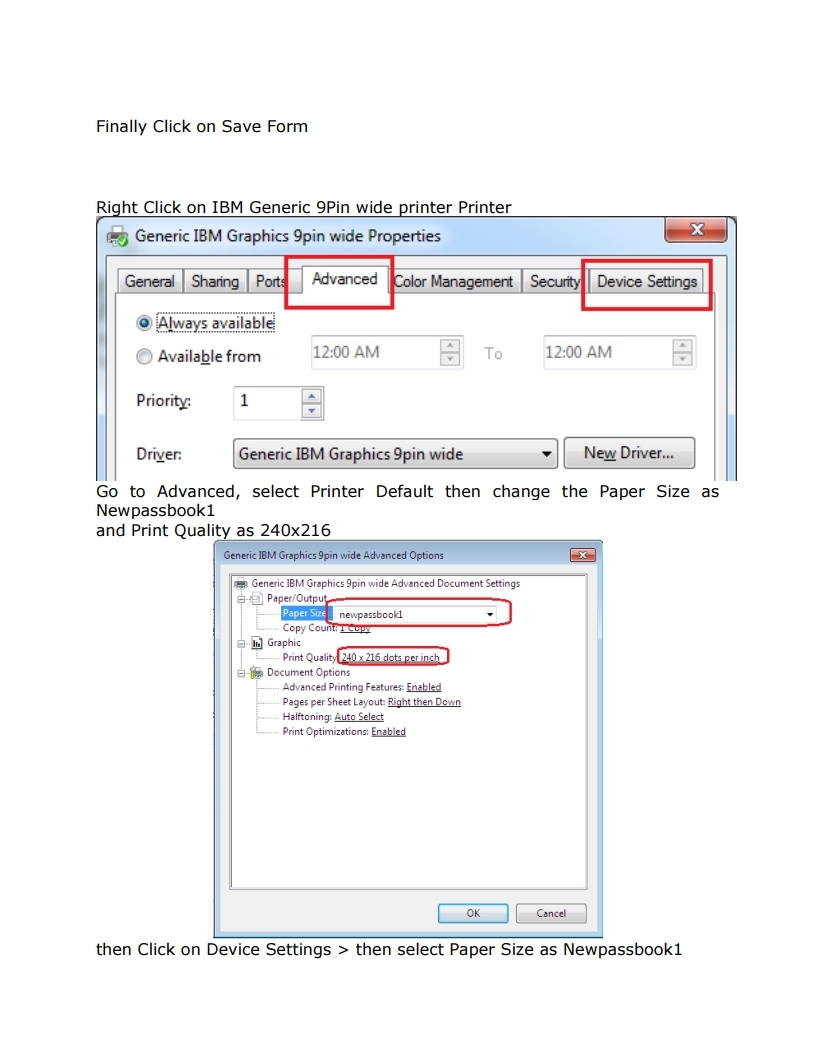
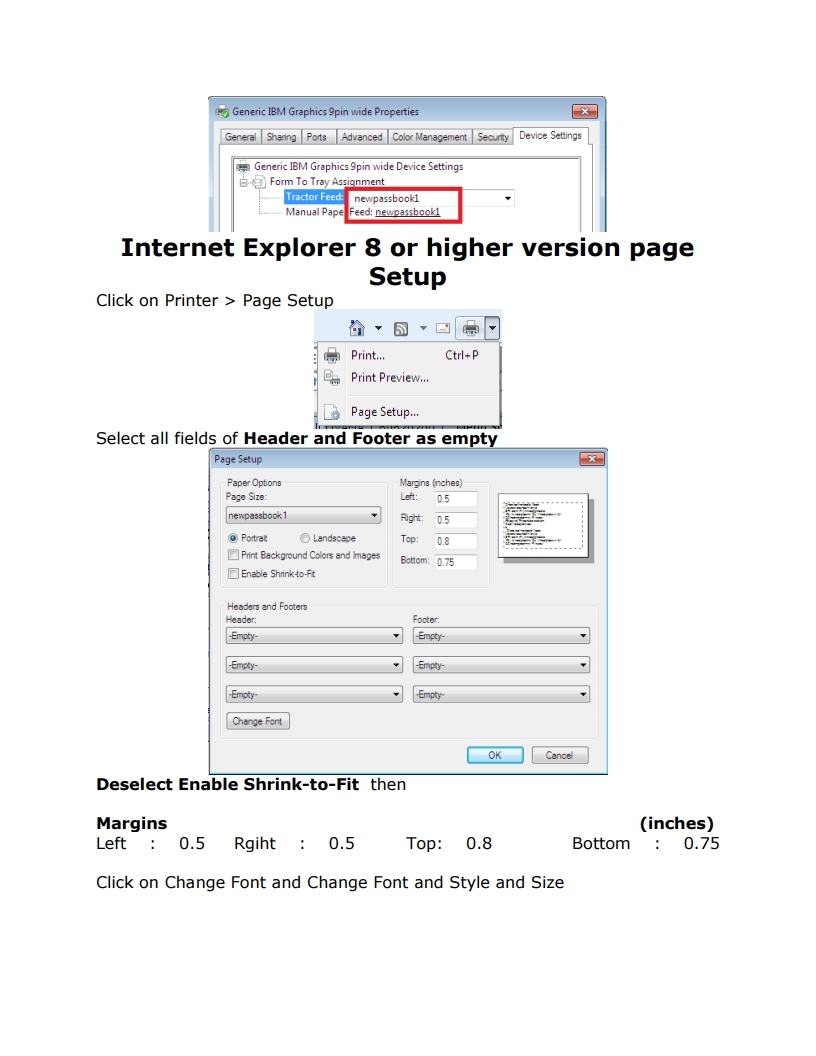
Please follow the below settings to configure EPSON PLQ20 Passbook printer